Controls · Angular, React and OpenLayers
Rotate and zoom in full screen
Combine OpenLayers FullScreen control and Shift-drag DragRotateAndZoom over Kraków aerial imagery so desktop rotation works in full screen.
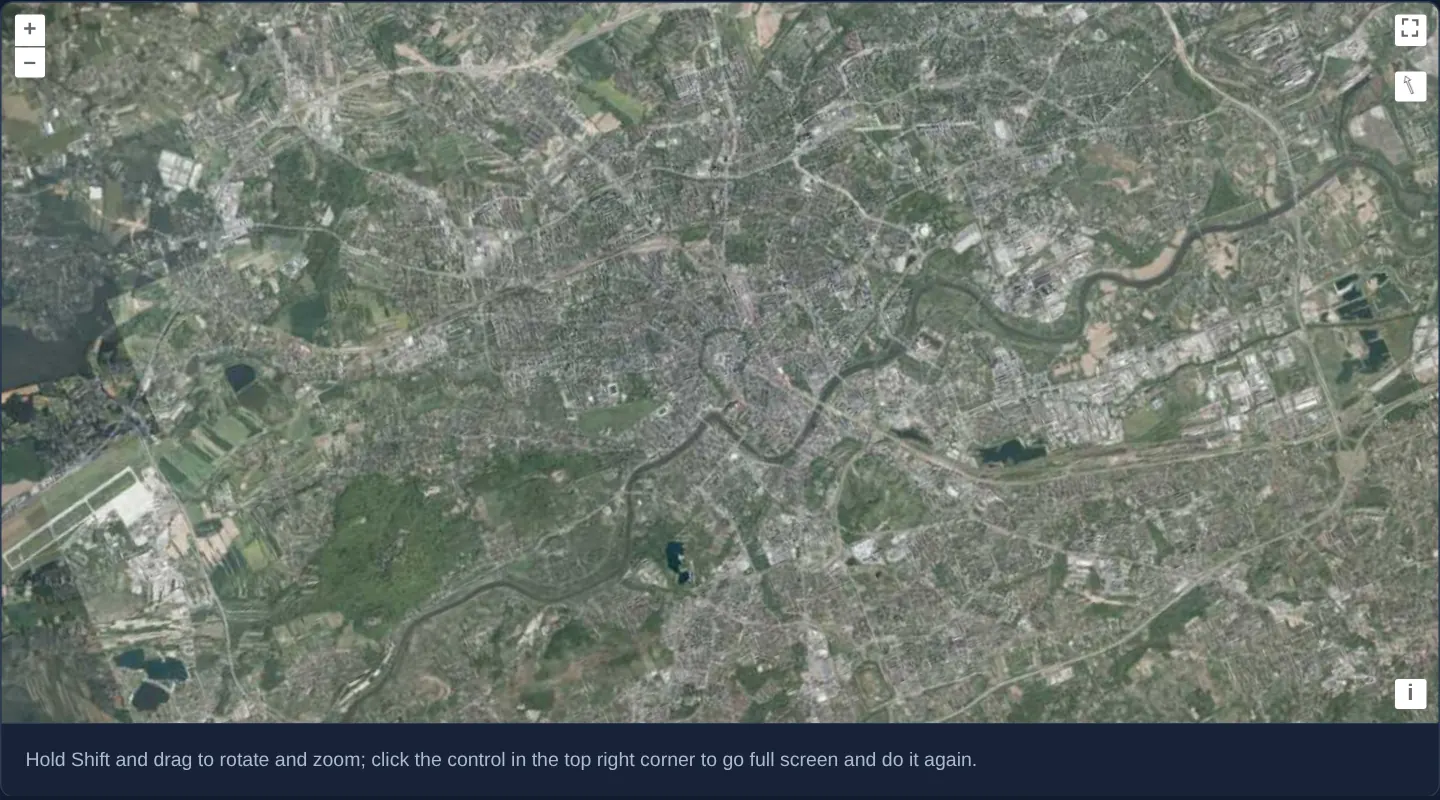
What this example shows
GUGiK’s aerial orthophotomap of Kraków and the winding Vistula opens rotated 22.5 degrees counter-clockwise ([rotation]="-0.3927"), showing both the full-screen toggle and the active north-reset compass stacked in the top-right corner.
Holding Shift and dragging with the mouse smoothly rotates and scales the orthophoto both inside the embedded page layout and after expanding to full screen.
When you need it
Photo-interpreters, roof-solar planners and civil engineers inspecting aerial imagery frequently expand the map to full screen and spin the heading to align building facades or riverbanks horizontally.
Pairing FullScreen with DragRotateAndZoom ensures desktop mouse users keep fluid single-gesture rotation and zoom even when surrounding page toolbars are hidden in fullscreen mode.
The code
The example uses cc-openlayers, my Angular component library for OpenLayers: each aol-… element creates the OpenLayers object it names, updates it from its inputs and disposes of it with the component.
full-screen-drag-rotate-and-zoom.tsimport { ChangeDetectionStrategy, Component } from '@angular/core';
import { getTopLeft, getWidth } from 'ol/extent';
import { EXTENT } from 'ol/proj/epsg3857';
import {
ControlFullScreenComponent,
CoordinateComponent,
DefaultControlComponent,
DefaultInteractionComponent,
DragRotateAndZoomInteractionComponent,
LayerTileComponent,
MapComponent,
SourceTileWMTSComponent,
TileGridWMTSComponent,
ViewComponent,
} from 'cc-openlayers';
const size = getWidth(EXTENT) / 256;
/** The orthophoto with a full screen control and Shift and drag to rotate and zoom, which also works in full screen. */
@Component({
selector: 'app-full-screen-drag-rotate-and-zoom',
imports: [
ControlFullScreenComponent,
CoordinateComponent,
DefaultControlComponent,
DefaultInteractionComponent,
DragRotateAndZoomInteractionComponent,
LayerTileComponent,
MapComponent,
SourceTileWMTSComponent,
TileGridWMTSComponent,
ViewComponent,
],
changeDetection: ChangeDetectionStrategy.OnPush,
template: `
<aol-map height="480px">
<aol-interaction-default />
<aol-interaction-dragrotateandzoom />
<aol-control-defaults />
<aol-control-fullscreen />
<aol-view [zoom]="8" [rotation]="-0.3927">
<aol-coordinate [x]="19.9368" [y]="50.0614" srid="EPSG:4326" />
</aol-view>
<aol-layer-tile>
<aol-source-tilewmts
attributions='Tiles © <a href="https://www.geoportal.gov.pl/" target="_blank">GUGiK</a>'
url="https://mapy.geoportal.gov.pl/wss/service/PZGIK/ORTO/WMTS/StandardResolution"
layer="ORTOFOTOMAPA"
matrixSet="EPSG:3857"
format="image/jpeg"
projection="EPSG:3857"
[style]="'default'"
>
<aol-tilegrid-wmts [origin]="origin" [resolutions]="resolutions" [matrixIds]="matrixIds" />
</aol-source-tilewmts>
</aol-layer-tile>
</aol-map>
<div class="example-controls">
<p class="example-hint">
Hold Shift and drag to rotate and zoom; click the control in the top right corner to go full screen and do it
again.
</p>
</div>
`,
})
export class FullScreenDragRotateAndZoom {
protected readonly origin = getTopLeft(EXTENT);
protected readonly resolutions = Array.from({ length: 20 }, (_, z) => size / 2 ** z);
protected readonly matrixIds = Array.from({ length: 20 }, (_, z) => `EPSG:3857:${z}`);
} The React version uses the library's React adapter, cc-openlayers/react: each component creates the OpenLayers object it names when it mounts, updates it from its props and disposes of it when it unmounts.
full-screen-drag-rotate-and-zoom.react.tsximport { getTopLeft, getWidth } from 'ol/extent.js';
import { EXTENT } from 'ol/proj/epsg3857.js';
import {
Coordinate,
DefaultControls,
DefaultInteractions,
DragRotateAndZoomInteraction,
FullScreenControl,
Map,
TileLayer,
View,
WMTSSource,
useWMTSTileGrid,
} from 'cc-openlayers/react';
const size = getWidth(EXTENT) / 256;
const gridOptions = {
origin: getTopLeft(EXTENT),
resolutions: Array.from({ length: 20 }, (_, z) => size / 2 ** z),
matrixIds: Array.from({ length: 20 }, (_, z) => `EPSG:3857:${z}`),
};
/** The orthophoto with a full screen control and Shift and drag to rotate and zoom, which also works in full screen. */
export function FullScreenDragRotateAndZoom() {
const tileGrid = useWMTSTileGrid(gridOptions);
return (
<>
<Map height="480px">
<DefaultInteractions />
<DragRotateAndZoomInteraction />
<DefaultControls />
<FullScreenControl />
<View zoom={8} rotation={-0.3927}>
<Coordinate x={19.9368} y={50.0614} srid="EPSG:4326" />
</View>
<TileLayer>
<WMTSSource
attributions='Tiles © <a href="https://www.geoportal.gov.pl/" target="_blank">GUGiK</a>'
url="https://mapy.geoportal.gov.pl/wss/service/PZGIK/ORTO/WMTS/StandardResolution"
layer="ORTOFOTOMAPA"
matrixSet="EPSG:3857"
format="image/jpeg"
projection="EPSG:3857"
style="default"
tileGrid={tileGrid}
/>
</TileLayer>
</Map>
<div className="example-controls">
<p className="example-hint">
Hold Shift and drag to rotate and zoom; click the control in the top right corner to go full screen and do it
again.
</p>
</div>
</>
);
}How the React version works
The DragRotateAndZoom interaction joins the full-screen control: Shift and a drag rotate and zoom the map, which starts rotated by 1/16 of a turn.
What both versions share
OpenLayers renders the map and handles the interactions; the cc-openlayers/core layer gives both adapters the same view binding (MapViewBinding) and the same conversion of coordinates from EPSG:4326 to the map's projection. Both versions compute the WMTS tile grid of GUGiK's orthophoto (origin, 20 resolutions, ids EPSG:3857:z) in the same way; in React the useWMTSTileGrid hook creates it once from module constants.
From Angular to React
| Angular | React |
|---|---|
<aol-interaction-dragrotateandzoom /> | <DragRotateAndZoomInteraction /> |
<aol-control-fullscreen /> | <FullScreenControl /> |
[rotation] on aol-view | rotation on View |
<aol-source-tilewmts> with <aol-tilegrid-wmts> inside | <WMTSSource tileGrid={tileGrid}> with useWMTSTileGrid(...) |
Who creates, updates and disposes
Map creates the ol/Map in useLayoutEffect and disposes of it on unmount; each layer, source and interaction component adds its object to the parent it gets from context and removes it in its effect's cleanup, as ngOnDestroy does in Angular. The control is a child of Map, as in the Angular template; the adapter adds it to the map and removes it on unmount.
Architecture and OpenLayers mechanics
Declaring aol-interaction-dragrotateandzoom after aol-interaction-default lets it claim Shift+drag ahead of the default box-zoom interaction, while aol-control-fullscreen promotes the map’s own viewport element into browser fullscreen.
Because OpenLayers attaches pointer listeners directly to that promoted viewport DOM subtree—and re-measures its centre pixel upon entering fullscreen—Shift-drag rotation and scaling continue pivoting accurately around the centre of the monitor. Starting at [rotation]="-0.3927" (−π/8 radians) makes the rotated state and compass button immediately visible.
How it works
aol-interaction-dragrotateandzoomandaol-control-fullscreenwork together over the WMTS orthophotomap.- Because pointer listeners bind to the map viewport element that enters full screen, Shift+drag gestures continue working seamlessly after the fullscreen resize.
[rotation]="-0.3927"(−π/8 rad, 22.5° counter-clockwise) starts the view tilted so the compass button appears immediately below the full-screen button.
Pitfalls
- Always place
aol-interaction-dragrotateandzoomafteraol-interaction-default; declared earlier, Shift+drag is swallowed by the default DragBox zoom interaction. - DragRotateAndZoom handles mouse pointers only—on touch tablets in either normal or fullscreen mode, standard two-finger pinch-and-twist gestures handle rotation and zoom.
Related examples
The same feature in the OpenLayers examples .
Background: state and lifecycle of maps in Angular with OpenLayers, which the components of cc-openlayers take care of.