Styling and labels · Angular, React and OpenLayers
Icon width and height in pixels
Size an OpenLayers SVG marker directly by pixel width and height bindings while preserving aspect ratio when either dimension is cleared in UI.
What this example shows
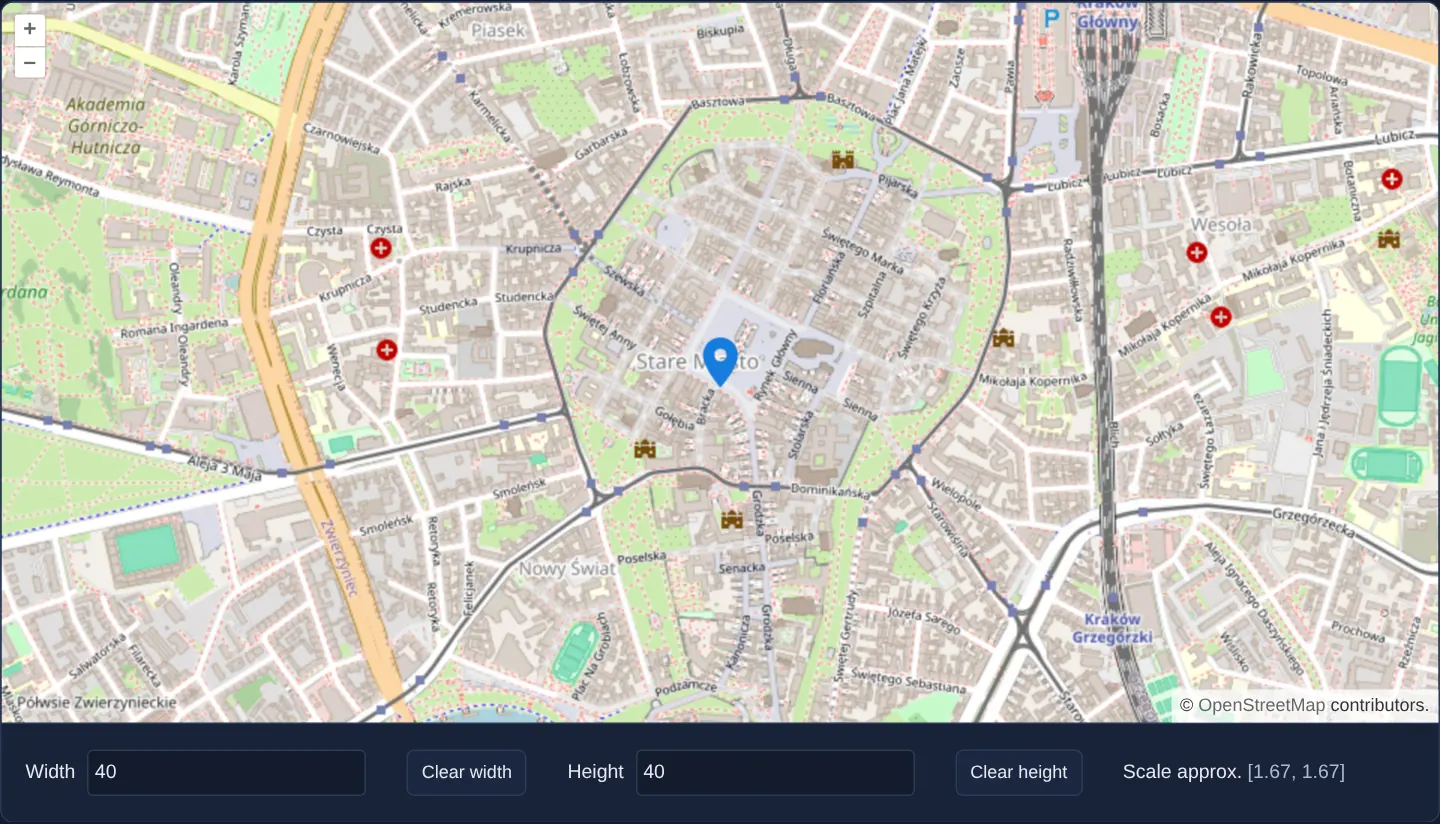
Over Kraków’s Old Town at zoom 15, a map pin on the Main Market Square is sized via two numeric form inputs (Width and Height, starting at 40 px) rather than an abstract scale multiplier, with the computed internal scale factor and effective rendered dimensions reported live below the map.
Setting both numbers stretches or squashes the pin to exact pixel dimensions, whereas clearing either field automatically scales the missing axis proportionally to preserve the SVG’s natural aspect ratio.
When you need it
UI design specs always prescribe marker sizes in CSS pixels (32 × 32 px or 40 px tall), even when underlying user-uploaded or library icons vary wildly in intrinsic SVG/PNG dimensions (24 px, 64 px, 512 px).
Specifying target width and height in pixels lets OpenLayers compute the exact scale factor automatically once each image loads.
The code
The example uses cc-openlayers, my Angular component library for OpenLayers: each aol-… element creates the OpenLayers object it names, updates it from its inputs and disposes of it with the component.
icon-width.tsimport { ChangeDetectionStrategy, Component, signal, viewChild } from '@angular/core';
import {
CoordinateComponent,
DefaultControlComponent,
DefaultInteractionComponent,
FeatureComponent,
GeometryPointComponent,
LayerTileComponent,
LayerVectorComponent,
MapComponent,
SourceOsmComponent,
SourceVectorComponent,
StyleComponent,
StyleIconComponent,
ViewComponent,
} from 'cc-openlayers';
/** A marker whose icon width and height are typed in, or cleared so the icon keeps its proportions. */
@Component({
selector: 'app-icon-width',
imports: [
CoordinateComponent,
DefaultControlComponent,
DefaultInteractionComponent,
FeatureComponent,
GeometryPointComponent,
LayerTileComponent,
LayerVectorComponent,
MapComponent,
SourceOsmComponent,
SourceVectorComponent,
StyleComponent,
StyleIconComponent,
ViewComponent,
],
changeDetection: ChangeDetectionStrategy.OnPush,
template: `
<aol-map height="480px" (renderComplete)="measure()">
<aol-interaction-default />
<aol-control-defaults />
<aol-view [zoom]="15"><aol-coordinate [x]="19.9368" [y]="50.0614" srid="EPSG:4326" /></aol-view>
<aol-layer-tile><aol-source-osm /></aol-layer-tile>
<aol-layer-vector>
<aol-source-vector>
<aol-feature>
<aol-geometry-point><aol-coordinate [x]="19.9368" [y]="50.0614" srid="EPSG:4326" /></aol-geometry-point>
<aol-style><aol-style-icon src="assets/marker.svg" [width]="width()" [height]="height()" /></aol-style>
</aol-feature>
</aol-source-vector>
</aol-layer-vector>
</aol-map>
<div class="example-controls">
<label>
Width
<input name="width" type="number" [value]="widthField()" (input)="setWidth(number($event))" />
</label>
<button type="button" (click)="width.set(undefined)">Clear width</button>
<label>
Height
<input name="height" type="number" [value]="heightField()" (input)="setHeight(number($event))" />
</label>
<button type="button" (click)="height.set(undefined)">Clear height</button>
<span>
Scale approx. <output>{{ scale() }}</output>
</span>
</div>
`,
})
export class IconWidth {
/** The size given to the icon; a cleared one is left to the icon. */
readonly width = signal<number | undefined>(40);
readonly height = signal<number | undefined>(40);
/** The sizes the fields show: the typed ones, or the icon's own once it has drawn without one. */
readonly widthField = signal(40);
readonly heightField = signal(40);
readonly scale = signal('');
private readonly icon = viewChild.required(StyleIconComponent);
protected number(event: Event): number {
return (event.target as HTMLInputElement).valueAsNumber;
}
protected setWidth(width: number): void {
this.width.set(width);
this.widthField.set(width);
this.height.set(this.heightField());
}
protected setHeight(height: number): void {
this.height.set(height);
this.heightField.set(height);
this.width.set(this.widthField());
}
/** Reads the icon's scale and the size it drew a cleared dimension with. */
protected measure(): void {
const icon = this.icon().instance;
const scale = icon.getScale();
this.scale.set(Array.isArray(scale) ? `[${scale.map((value) => value.toFixed(2)).join(', ')}]` : String(scale));
const width = icon.getWidth();
const height = icon.getHeight();
if (this.width() === undefined && width !== undefined) this.widthField.set(Math.round(width));
if (this.height() === undefined && height !== undefined) this.heightField.set(Math.round(height));
}
} The React version uses the library's React adapter, cc-openlayers/react: each component creates the OpenLayers object it names when it mounts, updates it from its props and disposes of it when it unmounts.
icon-width.react.tsximport { useRef, useState, type ChangeEvent } from 'react';
import type Icon from 'ol/style/Icon.js';
import {
Coordinate,
DefaultControls,
DefaultInteractions,
Feature,
IconStyle,
Map,
OSMSource,
PointGeometry,
Style,
TileLayer,
VectorLayer,
VectorSource,
View,
} from 'cc-openlayers/react';
function number(event: ChangeEvent<HTMLInputElement>): number {
return event.target.valueAsNumber;
}
/** A marker whose icon width and height are typed in, or cleared so the icon keeps its proportions. */
export function IconWidth() {
/** The size given to the icon; a cleared one is left to the icon. */
const [width, setWidthState] = useState<number | undefined>(40);
const [height, setHeightState] = useState<number | undefined>(40);
/** The sizes the fields show: the typed ones, or the icon's own once it has drawn without one. */
const [widthField, setWidthField] = useState(40);
const [heightField, setHeightField] = useState(40);
const [scale, setScale] = useState('');
const icon = useRef<Icon>(null);
const setWidth = (value: number) => {
setWidthState(value);
setWidthField(value);
setHeightState(heightField);
};
const setHeight = (value: number) => {
setHeightState(value);
setHeightField(value);
setWidthState(widthField);
};
/** Reads the icon's scale and the size it drew a cleared dimension with. */
const measure = () => {
const current = icon.current;
if (!current) return;
const iconScale = current.getScale();
setScale(
Array.isArray(iconScale) ? `[${iconScale.map((value) => value.toFixed(2)).join(', ')}]` : String(iconScale)
);
const iconWidth = current.getWidth();
const iconHeight = current.getHeight();
if (width === undefined && iconWidth !== undefined) setWidthField(Math.round(iconWidth));
if (height === undefined && iconHeight !== undefined) setHeightField(Math.round(iconHeight));
};
return (
<>
<Map height="480px" onRenderComplete={measure}>
<DefaultInteractions />
<DefaultControls />
<View zoom={15}>
<Coordinate x={19.9368} y={50.0614} srid="EPSG:4326" />
</View>
<TileLayer>
<OSMSource />
</TileLayer>
<VectorLayer>
<VectorSource>
<Feature>
<PointGeometry>
<Coordinate x={19.9368} y={50.0614} srid="EPSG:4326" />
</PointGeometry>
<Style>
<IconStyle ref={icon} src="assets/marker.svg" width={width} height={height} />
</Style>
</Feature>
</VectorSource>
</VectorLayer>
</Map>
<div className="example-controls">
<label>
Width
<input name="width" type="number" value={widthField} onChange={(event) => setWidth(number(event))} />
</label>
<button type="button" onClick={() => setWidthState(undefined)}>
Clear width
</button>
<label>
Height
<input name="height" type="number" value={heightField} onChange={(event) => setHeight(number(event))} />
</label>
<button type="button" onClick={() => setHeightState(undefined)}>
Clear height
</button>
<span>
Scale approx. <output>{scale}</output>
</span>
</div>
</>
);
}How the React version works
A marker whose icon width and height are typed in, or cleared so the icon keeps its proportions; after each render the page shows the scale the icon uses.
What both versions share
OpenLayers renders the map and handles the interactions; the cc-openlayers/core layer gives both adapters the same view binding (MapViewBinding) and the same conversion of coordinates from EPSG:4326 to the map's projection.
From Angular to React
| Angular | React |
|---|---|
<aol-feature> with <aol-geometry-point> and <aol-coordinate> | <Feature> with <PointGeometry> and <Coordinate> |
<aol-style-icon [width] [height]> and viewChild of it | <IconStyle width height ref={icon}>; the ref holds the ol/style/Icon |
the fields' (input) and signals | onChange (React's input event) and useState |
(renderComplete) on the map reading the scale | onRenderComplete on Map reading the icon through its ref |
Who creates, updates and disposes
Map creates the ol/Map in useLayoutEffect and disposes of it on unmount; each layer, source and interaction component adds its object to the parent it gets from context and removes it in its effect's cleanup, as ngOnDestroy does in Angular.
Architecture and OpenLayers mechanics
Binding [width] and [height] on aol-style-icon passes target pixel dimensions to OpenLayers’ Icon constructor, which divides them by the loaded asset’s intrinsic size (40 / 24 for a 24 px SVG). Supplying both produces a two-element [scaleX, scaleY] tuple; omitting one produces a uniform scalar scale.
Because OpenLayers evaluates width and height only at Icon construction time, aol-style-icon instantiates a fresh Icon whenever either input changes, and (renderComplete) reads back the resolved scale and dimensions once the image has painted.
How it works
[width]and[height]onaol-style-iconsize the 24-pixel SVG at 40 pixels by computing an internal 40 / 24 scale after load.- Providing both dimensions scales X and Y independently; clearing either dimension switches to uniform proportional scaling.
aol-style-iconrecreates the underlying OpenLayers Icon whenever width or height inputs change.(renderComplete)reads the live computed scale and effective pixel size into the form after rendering.
Pitfalls
- Never pass
scalealongsidewidthorheightin OpenLayers Icon options—OpenLayers throws whenscaleis combined withwidthorheight. getWidth()andgetHeight()return undefined until the asynchronous image decode finishes, so always read them after load or inside(renderComplete).
Related examples
The same feature in the OpenLayers examples .
Background: state and lifecycle of maps in Angular with OpenLayers, which the components of cc-openlayers take care of.